
buffering? How to troubleshoot and fix common issues
Buffering is when you keep getting the spinning circle when trying to watch your app. this is rarely an issue in the app itself and is more likely on the user side. There are several steps you can take to help stop buffering when streaming:
Always reboot your internet. This is normal maintenance that should be done at least once a week when streaming.
Next many times buffering can be fixed by changing a simple setting in the app or player you are using. All the apps have the sma core software and are built around the Smarters player. No mater the name of the app or background they are 90% based on the core software built by Smarters. Now lets change the streaming format to prevent buffering.
Go to settings in the app
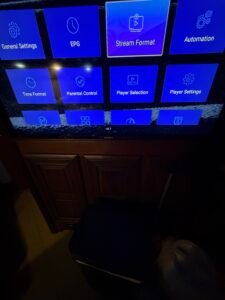
then click on stream format
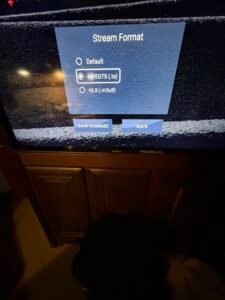
The format being used will most likely be the (.ts) MPEGTS format. We want to change this to the HLS (m3u8) format
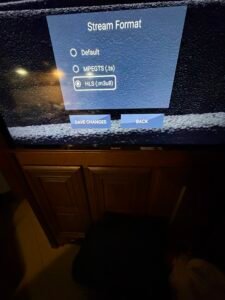
Once you have changed it to the HLS click save and enjoy.
On older versions of the app this setting may be under player settings.
If this does not help or the settings were already on HLS keep reading and follow the other instructions on this page.
1.Check your internet connection: Make sure you have a strong and stable internet connection. You can try resetting your router or connecting to a different network. Make sure if you have 5G wifi you are using that connection if the signal is strong enough. Lets begin by checking your speed coming through to the app. NOTE: If you are only paying for 1 connection and using multiple devices (that’s ok) make sure the device not being used is on the app home page. This is the one with LiveTV, Movies and Series on it. The reason for this is because if you just turn off your TV the firestick will continue to play and will cause your other device to buffer. Also, do NOT use a VPN.
First let check your speed to the app itself
- Do a speed test in the app
- Go to the app Home Screen
- Then go to settings in the top right
- Next go to speed test and click run test
Instructions are also in the video below.
Now lets reboot your internet devices by pulling the power cable out of the modem and router if they are separate devices. If speed hasn’t improved check your speed at the connection with a computer If it’s not better you need better wifi router or mesh. We suggest a mesh system from Amazon called TP Link WIFI mesh. You should do this especially if you are only using the ISP router. Two reasons
- You will get better streaming performance
- You are probably paying for the wifi services from your ISP and shouldn’t be because their equipment is not meant to do what you are trying to achieve.
Your download speed needs to be at least 30 Mbps or better for the app to work properly. If it’s not move on to next step. However, the next step should be performed once a week anyway,
2.Close other applications: Streaming requires a lot of bandwidth, so close any other applications or devices that may be using up your internet connection. There is a great app to help you with this called background processes that you can download directly from amazon on your firestick. Here is a nice video that explains how to download and use this app
3.If your account is for multiple connections, make sure every device is on the same WIFI connection. You can do this by hitting the house button on your remote , then go to settings, then network and ensure all you devices are on same network. This is necessary because we use a IP lock and it will cause your app to buffer every few seconds as a built in annoyance.
4.Use an Ethernet cable: If possible, connect your device directly to your router using an Ethernet cable instead of relying on Wi-Fi, as this can provide a more stable connection. Amazon sells a firestick ethernet adapter so you can do this easily
5. Update your firestick: Make sure you are using the latest version of your firestick or streaming app, as updates may improve streaming performance.
6. Clear your app cache: Clearing your app’s cache can help improve streaming performance by removing any temporary files that may be causing issues. To clear your app cache do this
- Hit the house button on remote
- Go to Settings
- Select Applications
- Select Manage Installed Applications
- Select the app you want to clear the cache for
- Select Clear Cache
7. Restart your device: Sometimes simply restarting your device can help resolve buffering issues. To restart your firestick device do this
Hit the house button on remote
There are two ways to restart a Fire Stick:
- Use the remote: Press and hold the Select and Play/Pause buttons on the remote for about 5–10 seconds. A message will appear on the screen indicating that the device is restarting.
• • Use the settings menu: Navigate to Settings, then My Fire TV, and then Restart .
If you continue to experience buffering despite trying these steps, you may want to contact your internet service provider to see if there are any issues with your connection.